
 Digital picture frames let you show lots of photos on one device. You can send pictures from far away. You can also watch videos and listen to music. Some new devices, like the Novarhome Digital Calendar Chore Chart, have smart tools. These tools help you keep your family organized.
- You do not have to print photos or change frames.
- These frames use less energy and make less trash.
| Use Case | Description |
|---|---|
| Displaying Family Photos | You can show favorite memories and update them easily. |
| Home Decor | Digital frames make your room look fun and special. |
| Dynamic Content | You get new pictures all the time with no extra work. |
Key Takeaways
- Digital picture frames let you show lots of photos. You do not need to print them. This helps cut down on waste. It also saves energy.
- It is easy to set up a digital picture frame. You connect it to Wi-Fi. You upload your photos. You change the settings. Then you can share memories.
- You can send photos from any place. You use email, apps, or cloud services. This helps family stay close. It does not matter how far apart they are.
Setting Up Digital Picture Frames
Powering On and Connecting
Getting started with digital picture frames is easier than you might think. First, unbox your frame and check that everything looks good. Next, find a spot in your home where you want to display your photos. Plug the frame into a power outlet and press the power button. Most frames will light up right away.
Now, connect your frame to Wi-Fi. This step lets you send photos from your phone or computer. Some frames, like the Novarhome Digital Calendar Chore Chart, make this step simple with a touch screen. You just tap the screen and follow the instructions. If your frame uses a mobile app, download it to your phone and follow the prompts to connect.
Tip: Place your frame near your router for a strong Wi-Fi signal. This helps your photos upload faster.
Initial Setup Steps
Once your frame is on and connected, you can finish setting it up. Here’s a quick checklist to guide you:
- Set up an account if your frame asks for one.
- Upload your first photos using the app, email, or a memory card.
- Adjust the display settings, like brightness and slideshow speed.
- Add family members so they can share photos too.
- Explore extra features, such as calendar sync or chore charts.
Sometimes, you might run into small problems. Common issues include:
- Trouble connecting to Wi-Fi
- Power problems
- Display not turning on
- Photos not updating
If you see any of these, check your connections and restart the frame. Most problems have quick fixes, so you can get back to enjoying your photos in no time.
Sharing and Displaying Photos

Photo Transfer Methods
There are many ways to send pictures to digital picture frames. Most frames make sharing easy for everyone. You can use different methods to share your memories:
There are many convenient ways to send pictures to digital picture frames, and most modern frames make the sharing process simple for everyone. These flexible transfer options help you keep your favorite memories updated at any time:
- Email: Send photos directly to your frame’s unique email address. This method works on Wi-Fi digital picture frames and is perfect for quick remote uploads.
- Mobile App: Use the frame’s companion app to upload photos from your smartphone. Many apps let you organize albums, add captions, and adjust image order before uploading.
- Web Upload Tool: Some digital frames offer a browser-based upload portal. Simply log in on your computer to send high-resolution photos without needing extra software.
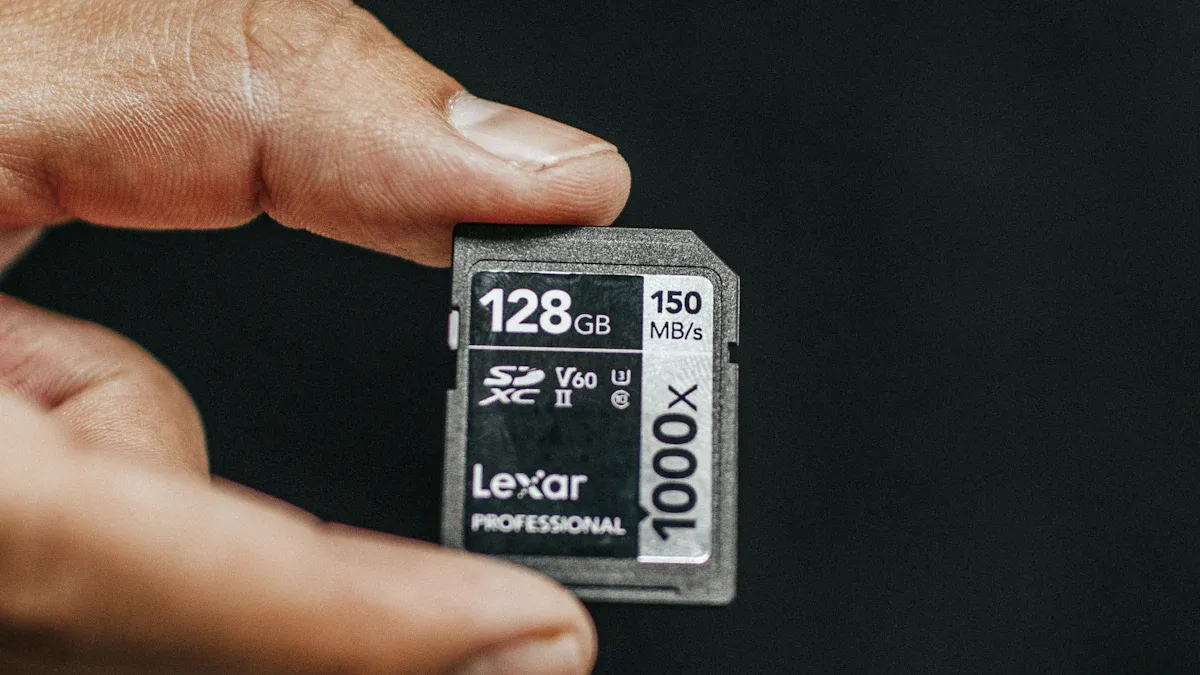
- Memory Card: Insert an SD card filled with pictures into your frame. This is a reliable choice for older picture frames or when transferring a large batch of photos at once.
- USB Drive:Plug in a flash drive to import photos quickly. Great for users who prefer offline transfers.
- Cloud Services: Connect your frame to Google Photos or other cloud storage apps. Once synced, your frame automatically pulls in new photos, keeping your display fresh without extra work.
- Social Media: Some smart frames link to Facebook or Instagram so you can showcase your newest posts and albums automatically.
Choose the transfer method that fits your lifestyle. For families living far apart, remote uploads are especially helpful—everyone can send photos to one shared frame, making it a meaningful tool for staying connected.
Pick the way that works best for you. If your family lives far away, remote uploads help you share easily. Everyone can send pictures to the same frame. This keeps you all connected.
Managing Slideshows and Albums
After you upload your photos, you can customize how they appear on the screen. Most Wi-Fi digital picture frames allow you to create slideshows that loop continuously with adjustable transitions and intervals. You can also set up themed albums—such as birthdays, travel trips, or holiday celebrations—to organize your memories in a more personal way.
Here are some useful features that enhance your viewing experience:
- Motion Sensors: Your frame automatically turns on when it detects movement, helping save energy when not in use.
- Calendar and Clock Overlays: Frames like the Novarhome Digital Calendar Chore Chart combine images with helpful widgets such as daily schedules, weather, and reminders.
- Short Video Playback: Many digital frames support video clips, giving slideshows a more dynamic, storytelling feel.
- Voice Assistant Support: If your frame works with smart home ecosystems, you can change slides or adjust settings hands-free.
- Photo Editing Tools: Compress, crop, or brighten your pictures before uploading to ensure the best display quality.
- Custom Playlists: Create personalized photo playlists for different moods or events so you always see the moments that matter most.
Pro Tip: Keep the screen clean for the best display clarity and regularly install firmware updates to improve performance and stability.
Remote Sharing Features
You do not need to be near your frame to share photos. With Wi-Fi and mobile apps, you can send pictures from anywhere. Family members can add their own photos. This makes a shared album that grows over time.
Digital picture frames use safe cloud servers to protect your memories. Good brands use encryption to keep your photos safe when you send or store them. Your private moments stay private.
Communication between your app and frame is encrypted. No one else can see your photos or videos, not even the company. This keeps your memories safe when you share.
Always check your frame’s privacy policy. Pick companies that follow strong rules to protect your data. If you use a frame like the Novarhome Digital Calendar Chore Chart, you get extra features. You can sync calendars, manage chores, and organize your family on one device.
Sharing photos is easier than ever. You can update your frame from your phone, computer, or by email. Everyone in your family can join in. Your digital picture frame becomes a hub for memories and connection.
Advanced Features of Digital Picture Frames
Connectivity and App Integration
Digital picture frames can do more when you use Wi-Fi or Bluetooth. These connections let you send photos from anywhere. You can use your phone or computer to upload pictures. You do not need memory cards or USB drives anymore. With a mobile app, you can control your frame from your seat. You can change settings and organize albums easily.
- Send photos right away from anywhere in the world.
- Connect your frame to cloud albums or social media.
- Use Bluetooth to send pictures from your phone.
Novarhome gives you an easy app for setup and sharing. The frame connects to your home Wi-Fi. It keeps your memories fresh and updated.
Interactive Functions and Customization
Digital picture frames now have fun interactive features. You can use a touch screen to look through photos. You can change how fast slideshows go or pick cool effects. Some frames play music or audio messages with your pictures.
You can set your frame to show special photos on birthdays or holidays. You can also choose how long each photo stays on the screen. This makes your slideshow fit what you like. These choices help you enjoy your memories your way.
Tip: Try out different transition effects to see your favorite. Some are smooth and calm. Others are bright and exciting.

Family Organization Tools
Frames like the Novarhome Digital Calendar Chore Chart do more than show photos. They help you keep your family organized. You can sync calendars, track chores, and plan meals on one device.
| Feature | Description |
|---|---|
| Calendar Synchronization | Keeps everyone’s schedule in one place. |
| Interactive Chore Chart | Lets you assign tasks and reward kids for good work. |
| Custom Lists | Helps you manage to-dos, groceries, and more. |
You can use colors to mark tasks for each person. The touch screen lets kids check off chores and see rewards. The Novarhome frame also shows weather and lets you set alarms. It is a real family hub.

Digital picture frames with smart tools save space and keep your family on track. They also look nice in any room.
Digital picture frames help make your home smarter and more connected. You can share photos right away with these frames. They help your family stay organized every day. You can enjoy your memories all the time. It is easy to set up a digital picture frame. Sharing photos is quick and simple. Advanced features help you feel close to family, even if you live far away.
FAQ
How do I add new photos to my digital picture frame?
You can upload photos using a mobile app, email, or a USB drive. Just follow the instructions on your frame’s screen.

Can I control my digital frame from my phone?
Yes! You can use the Novarhome app to send photos, update chores, or change settings. It works anywhere you have Wi-Fi.
What happens if my Wi-Fi goes out?
Your frame keeps showing the photos you already uploaded. You just can’t add new ones until your Wi-Fi comes back.